

Introduction: Understanding the Benefits of Docker for Laravel Development
For beginner programmers and those just starting out with PHP or Laravel development, it is usually easiest to install a development environment like , XAMPP or WAMP. However, after a while it becomes apparent that these environments do not make life easy for the developer and there comes a time when change is necessary.
In the world of web development, Docker has emerged as a game-changer for Laravel developers. With its containerization technology, Docker offers numerous benefits that enhance the efficiency and productivity of Laravel development projects.
One of the key advantages of using Docker for Laravel development is its ability to create lightweight and isolated containers. These containers encapsulate all the necessary dependencies and configurations required to run a Laravel application. By doing so, it eliminates any inconsistencies or conflicts that may arise due to differences in local environments.
Scalability is another significant benefit that Docker brings to Laravel development. With Docker’s container-based architecture, developers can easily scale their applications by spinning up additional containers as needed. This allows for seamless handling of increased traffic or workload without compromising performance.
Portability is also a major advantage offered by Docker in the context of Laravel development. Developers can package their entire application along with its dependencies into a single container image. This image can then be easily shared and deployed across different environments such as development, staging, and production without worrying about compatibility issues.
Furthermore, Docker simplifies the deployment process for Laravel applications by providing a consistent and reproducible environment. Developers can confidently deploy their applications knowing that they will run exactly as intended regardless of the underlying infrastructure.
In conclusion, leveraging Docker for Laravel development brings numerous benefits including improved scalability, enhanced portability, simplified deployment processes, and efficient utilization of resources. By harnessing the power of containerization technology offered by Docker, developers can streamline their workflow and deliver high-quality Laravel applications with ease.

Docker, Laravel development, containerization, software deployment, DevOps
(Prerequisite: make sure WSL2 is installed on your windows system first.)
Are you looking to set up a Docker environment for Laravel development? That’s a great idea! Docker can provide a consistent and isolated environment for your Laravel projects, making it easier to manage dependencies and ensure compatibility across different systems.
To get started, here are the steps you can follow:
- Install Docker: First, make sure you have Docker installed on your system. You can download and install it from the official Docker website based on your operating system.
- Create a new Laravel project: Once Docker is installed, open your terminal or command prompt as administrator and navigate to the directory where you want to create your Laravel project. Use the following command to create a new Laravel project:
2.1 Initialize wsl using by typing: wsl
2.2 Then using curl to install laravel’s docker image:
2.3 curl -s https://laravel.build/lara1-app | bash
This will (after several minutes), create a new Laravel project in the current directory.
- Start the Laravel docker container using the sail command: ./vendor/bin/sail up
(Tip: use the (–detach) -d flag when starting your containers to free up your command prompt. ./vendor/bin/sail up -d )
Make sure that no other web servers are running on port 80 before starting the Laravel container.
- Browse to localhost to view your new Laravel project.
- Open Docker Desktop to see your running containers. There should be one for the new application that you just started. Shut down the container and then restart it.
- Go back to the command prompt and type code . to open the visual studio code editor.
VSCode should open your new project ready for editing.

Download an install the Docker Desktop for Windows application making sure to use WSL2 instead of Hyper V. (Unless of course you prefer Hyper V!)

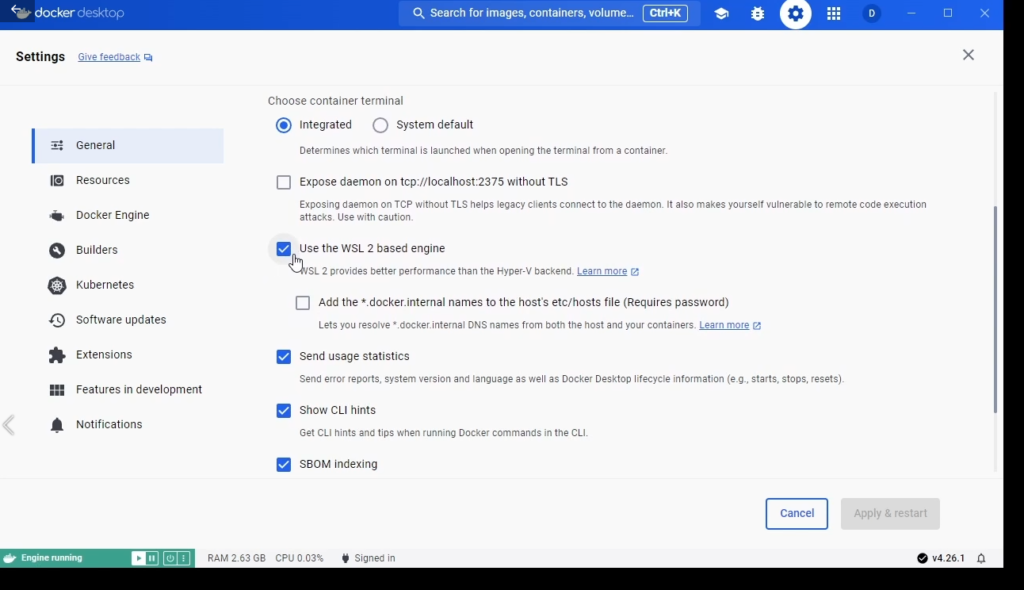
Once installed, open the Docker Desktop application and check that Use WSL 2 based engine is checked in the General configuration settings.

Open a windows command prompt as administrator and browse to your code directory or wherever you want to install your new project. I named my projects directory – code. Then type wsl at the prompt and this will start wsl in that directory.

Now use the command:
curl -s https://laravel.build/{your-app-name} | bash
Which will download and install the laravel docker images for your project. This may take several minutes!

Now that the docker images are install we can cd into the new project folder. In my case I called it lara1-app. Once inside your project folder, start thedocker container using :
./vendor/bin/sail up

You should now be able to view your project in the browser by browsing to localhost. If you want to stop and start the project, open docker desktop to see your running containers.

Try stopping the container and then restarting it from docker desktop. Then once it has started, go to your command prompt.

To view your application in visual studio code ( vscode ) just type code . within the projects directory.

VS Code should then open and display your project files ready for editing.

Here is a video of this process on my youtube channel.